
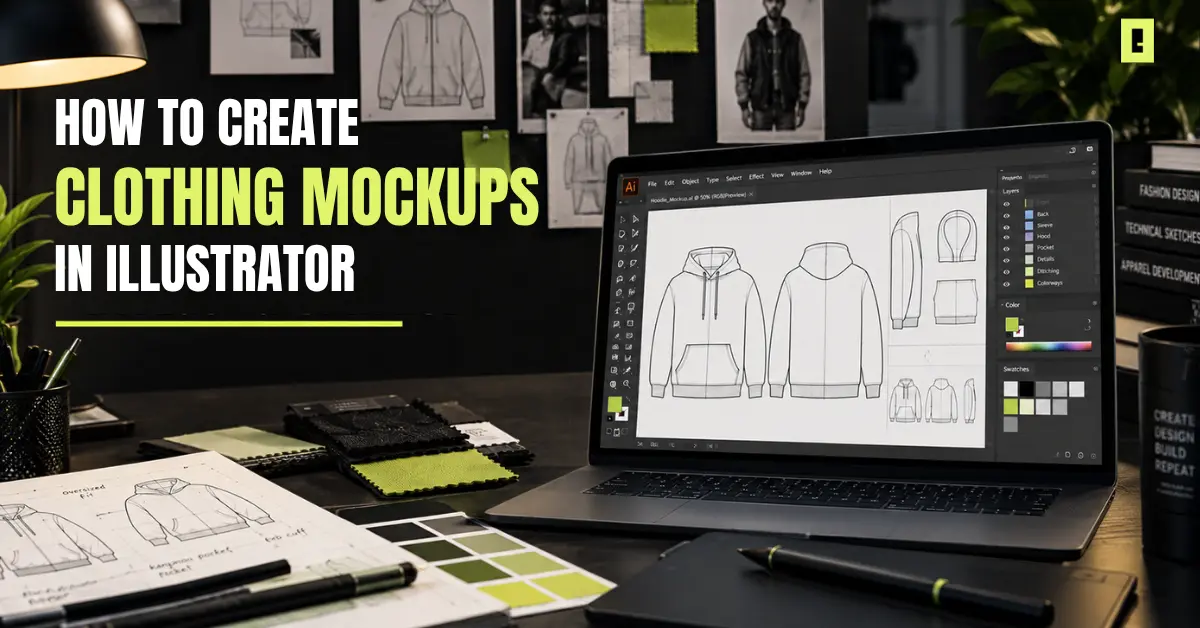
Creating a clothing design is only part of the process. Before production, client approval, or presenting a new collection, you need a clear way to visualize how to design and actually look at the garment.
Clothing Mockups in Illustrator help with that. You can draw the clothing form, swap color options, place artwork on top, and adjust seams or other construction marks. You can also test different versions without losing the ability to edit the files later.
For designers working on streetwear collections or building a clothing brand, this can make the design process much faster and more organized. In this guide, you’ll learn how to create a clothing mockup in Adobe Illustrator from the garment base to the final export.
Adobe Illustrator is particularly useful for apparel concepts because it works with vector artwork. That means your garment shapes and design elements can be resized and edited without losing the clean appearance of the artwork.
Vector artwork gives you control over the shape, proportions, and construction of your garment You can also work on the details that matter for how a garment is built. Instead of starting over, you can change small parts by editing points.
This comes in handy when you test multiple items. It is also helpful if you want new versions of the same style.
A single garment can become several colorways without recreating the mockup. You can select individual sections, apply new colors, and experiment with combinations until the design feels right.
Illustrator also lets you build details such as collars, cuffs, pockets, seams, hems, sleeves, and stitching. These details help the mockup communicate the structure of the actual garment more clearly.
For designers creating apparel concepts, that level of control makes an Illustrator clothing mockup much more useful than a simple flat image.
You don’t need a complicated setup to get started.
You’ll need Adobe Illustrator to create and edit the vector artwork. Familiarity with basic tools such as the Pen Tool, Direct Selection Tool, Layers, Pathfinder, and Clipping Mask will make the process easier.
You have two main options.
You can draw the garment from scratch, which gives you complete control over the shape and construction.
Or, you can start with an editable clothing vector mockup and customize it for your project. This is often the faster option when you’re working on multiple garments or developing an entire collection.
Have your design elements ready before you begin. This could include:
Having these elements ready keeps the mockup process focused on visualization rather than searching for assets halfway through the workflow.
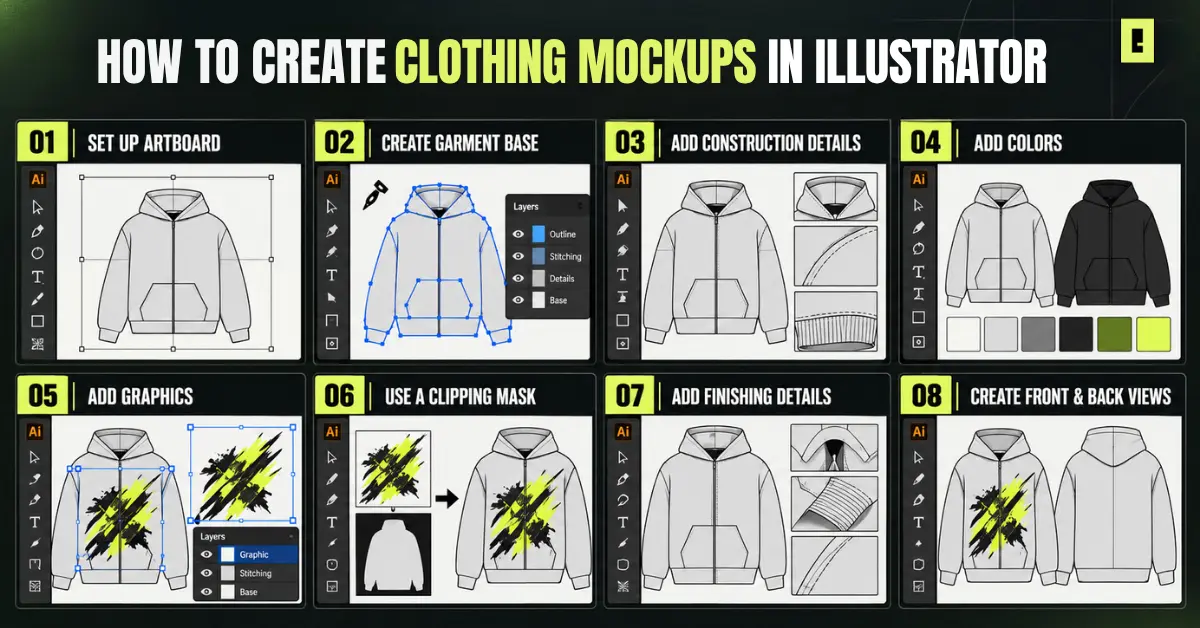
First, open Illustrator and make a new document. Pick an artboard size that matches where the mockup will be used.
Before you draw, organize your layers. You can use a basic setup like this:
Keeping these elements separated makes future edits much easier.
If you will do both front and back views, separate them right away. Put the front in its own layer group, and the back in another group with a clear name.
This kind of organization might feel small at the start. Later, when the mockup gets more complex, you will really notice the time saved.
If you are creating the garment yourself, begin with the overall silhouette.
Use the Pen Tool to sketch the main shape. Aim to get the proportions right. After the silhouette looks right, switch to the Direct Selection Tool. Adjust the curves and move the anchor points until they look clean.
If you are using a vector template instead, drop the garment into your Illustrator file. Check each piece one by one. Make sure the parts sit where they should.
A template helps because it saves you from remaking the usual garment structure. That leaves more time for the real clothing design.
Once the main shape is ready, build the details that make the garment recognizable.
Depending on the garment, this could include:
Use separate shapes and paths wherever possible. This keeps individual components easier to edit later.
Don’t overload the mockup with unnecessary details. Add enough information to communicate the garment’s structure clearly while keeping the artwork clean.
With the garment structure in place, start testing colors.
Select individual garment sections and apply your chosen colors. You can create multiple colorways by duplicating the garment and changing the relevant fills.
This is particularly useful for clothing brands developing several variations of the same product.
Keep the garment details visible when changing colors. Seams, outlines, folds, and construction elements should continue to provide visual definition instead of disappearing into the base color.
Now bring your actual clothing design into the mockup.
Place your logo, illustration, typography, or artwork over the garment and adjust its size and position.
Think about the intended placement:
Keep the graphics on a separate layer from the garment. This allows you to move, resize, or replace artwork without disturbing the underlying garment.
This step is where a basic garment template starts becoming a real clothing concept.
A clipping mask is one of the most useful techniques for creating clean apparel visuals in Illustrator.
Start by placing your artwork over the area of the garment where you want it to appear. Then create a shape that defines the printable area.
Place that shape above the artwork, select both elements, and use Object → Clipping Mask → Make.
The artwork will now remain inside the defined shape.
This technique is especially useful when you’re placing large graphics on T-shirts, hoodies, jackets, or other garments. You can continue editing the artwork while keeping its visible area controlled.
Your mockup will look much more convincing when the garment construction is clearly communicated.
Add details such as stitching, seams, folds, subtle shadows, and highlights where appropriate.
The goal isn’t to turn a vector mockup into a photorealistic image. The goal is to make the garment easy to understand.
For example, a seam should help show where two garment sections meet. A fold line can help communicate the shape of the fabric. A pocket outline can make the garment structure immediately clear.
Keep these details subtle and consistent.
For many clothing projects, one view isn’t enough
Make a front view and a back view. This lets you point out where the graphics go, where the labels sit, and how patterns and stitching details are placed.
Keep the size and shape the same in both views. Match the colors and the design elements too.
If you are building a set of apparel items, use streetwear mockups as a quick way to check the design from more than one side.
Front and back views are also helpful for sharing a clothing idea with clients. They can support the next step in production planning.
A good mockup isn’t just visually clean. It should also be easy to update.
Separate the garment, graphics, colors, and construction details. Avoid placing everything into one complicated layer.
Don’t flatten elements unnecessarily. Editable artwork gives you more freedom when creating new colorways or adjusting placement.
Instead of rebuilding the garment for every variation, duplicate the artwork and modify the colors. This lets you explore several directions quickly.
Drawing every garment from scratch can become repetitive, especially when you’re developing an entire collection.
If you want to focus more on your designs and less on rebuilding garment structures, Hoodie Vector Mockups can give you a ready-made Illustrator starting point for apparel concepts.
Once your mockup is finished, review the artwork before exporting.
Check:
Keep the original Illustrator file so you can make future edits.
For presentations or design sharing, export a suitable final format based on how the mockup will be used. Always keep your editable source file separately so you can return to the design later.
If you’re building several clothing concepts, save organized master files that can be duplicated for future designs. A clean file structure can save significant time as your collection grows.
Once your design is ready to move toward manufacturing, you can also use a tech pack for your clothing brand to organize important design and production specifications.
Creating a mockup is straightforward once you understand the workflow, but a few mistakes can make the process unnecessarily difficult.
The garment base affects everything that comes afterward. Spend time getting the proportions right before adding graphics.
Don’t place artwork without considering the garment’s shape, seams, and intended print area.
Thick outlines and excessive effects can make a vector garment look cluttered. Use details to communicate structure, not to overwhelm the design.
Keep important elements editable while you’re still working on the design.
If you’re presenting both views, make sure the colors, proportions, and design elements match.
Learning the process is valuable, but you don’t always need to manually draw every garment. Reusable vector mockups can remove repetitive work and give you more time to focus on creative decisions.
Learning how to create clothing mockups in Illustrator gives you more control over how your clothing concepts look before they move further into the design or production process.
You can build garment shapes, test colorways, position graphics, refine construction details, and create front and back views while keeping the artwork editable.
But you don’t need to redraw every garment every time. If you’re developing multiple clothing designs, starting with editable vector templates can help you move from concept to presentation much faster.
When you’re ready to spend less time rebuilding garments and more time pushing your designs forward, explore OxygenGrey’s clothing design resources.
Yes. Adobe Illustrator can be used to create editable vector clothing mockups. You can build garment shapes, add construction details, apply colors, place graphics, and create multiple design variations.
Create a clothing mockup in Illustrator by following these steps:
1) Set up your artboard,
2) Create or add the garment base,
3) Add construction details,
4) Apply garment colors,
5) Add your logo or artwork,
6) Use a clipping mask for clean artwork placement,
7) Add seams, shadows, and finishing details, and
8) Create front and back views before exporting.
The Pen Tool, Direct Selection Tool, Layers, Pathfinder, and Clipping Mask are particularly useful. Together, they give you control over garment shapes, details, colors, and artwork placement.
It depends on the project. Drawing from scratch gives you complete control, while ready-made vector clothing mockups can significantly reduce repetitive work. For designers creating multiple garments, editable templates can make the workflow much faster.