
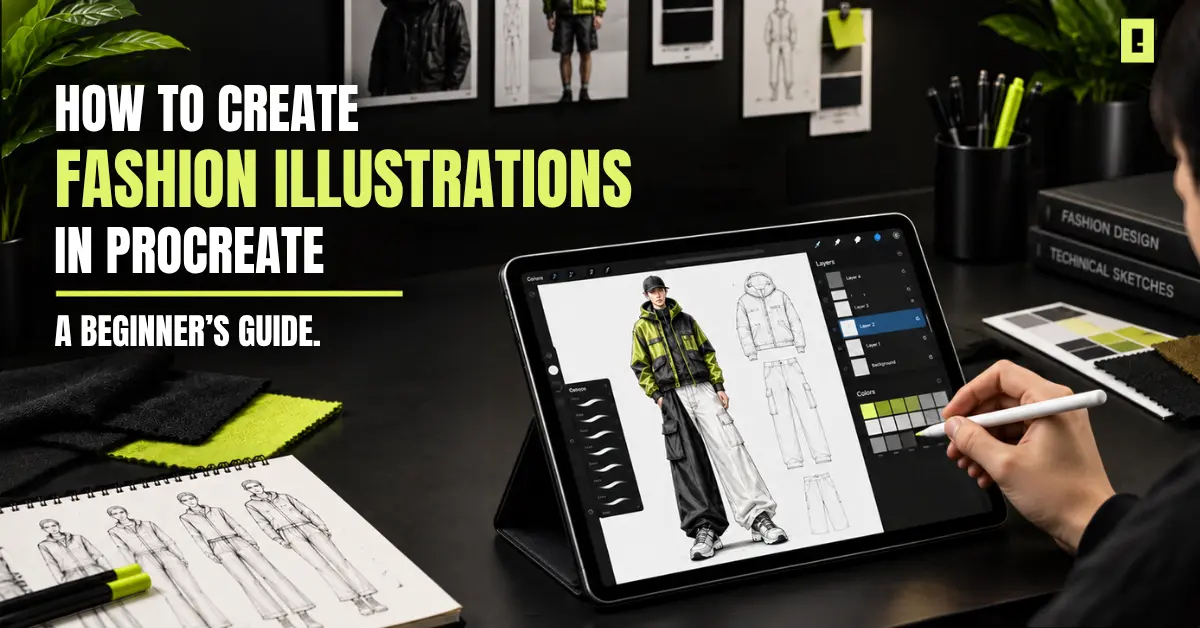
Fashion ideas don’t always arrive fully formed. You might start with a silhouette, a sleeve detail, a fabric idea, or a color combination. The challenge is turning that quick idea into something you can actually see, refine, and present.
That’s where fashion illustration in Procreate becomes powerful. You can sketch directly on your iPad, build garments in layers, test different colors, reshape details, and explore multiple versions without rebuilding the entire design from scratch.
If you are new to digital fashion drawing, or if you are building pieces for a collection, a strong Procreate workflow can help you move from a rough sketch to a finished fashion illustration.
You don’t need a complicated setup to start creating digital fashion artwork. A focused toolkit is enough to build, refine, and present your designs.
An iPad gives you a portable workspace for developing fashion concepts. Apple Pencil adds the hand control needed for everything from loose sketching to precise garment details.
Pressure sensitivity is particularly useful when you’re building line weight, sketching folds, defining seams, or adding subtle shading.
Procreate is your space for drawing and editing. It can handle the full illustration from start to finish.
For fashion work , a few tools matter more than everything else: layers, brush types, Selection tools, Transform tools, symmetry options, QuickShape, and the color controls.
You don’t need to master every feature. You need a workflow that helps you move quickly from idea to garment.
A fashion croquis provides the figure and proportions you can build your garment around.
Instead of repeatedly drawing the body, you can spend more time on the clothes. Look at the outline, the fit, how it moves, and the small design bits.
Brushes can completely change the feel of a fashion illustration.
Use clean brushes for sketches and clean lines. Then switch to textured brushes when you want to hint at real fabrics. Think denim, fleece, knit, leather, or canvas.
You are not aiming to use every brush you own. Choose the right Procreate Assets to match the look of your collection.
Before drawing the first line, think about where the illustration is going.
A concept created for Instagram doesn’t necessarily need the same setup as artwork being prepared for a portfolio, client presentation, or print.
Choose your canvas dimensions and resolution based on the final use. Starting with an appropriate canvas gives you more flexibility later and avoids unnecessary quality loss.
A clean layer structure can make your entire fashion illustration in Procreate easier.
A simple setup could be:
Croquis → Rough Sketch → Garment → Details → Color → Shadows → Texture
Keep major elements separate whenever possible.
Need to change the sleeve? Edit the garment layer.
Want to test another color? Adjust the color layer.
Want to try a different fabric treatment? Modify the texture layer.
This flexibility is one of the biggest advantages of working digitally.
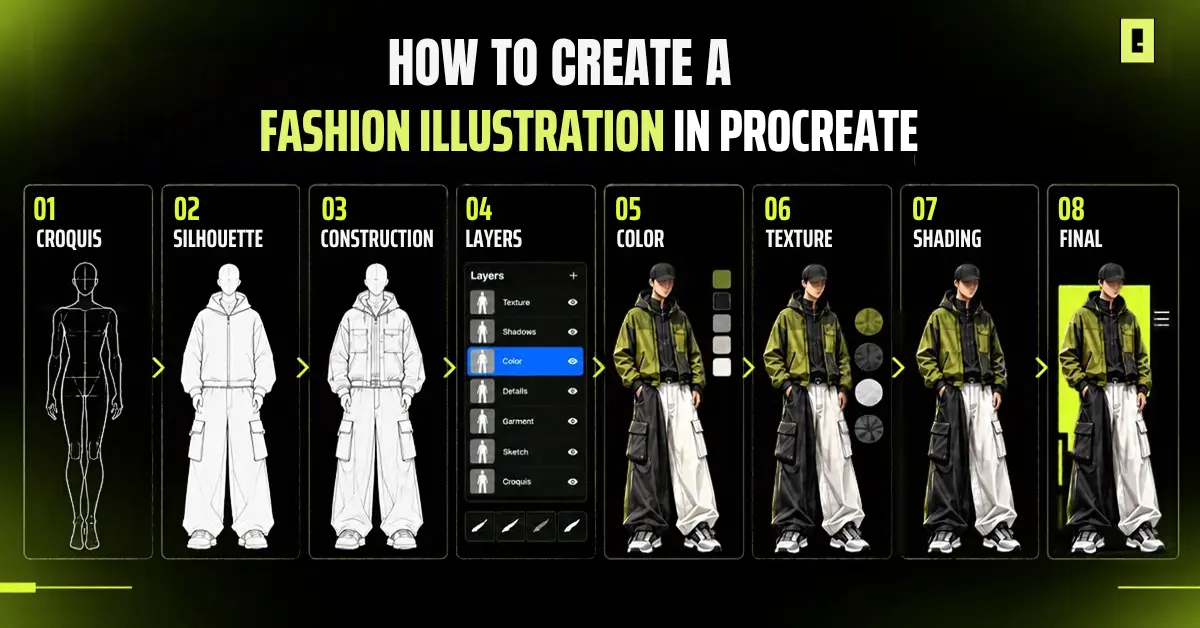
The strongest fashion Illustrations aren’t built by trying to perfect everything at once.
Start with the big idea. Establish the silhouette. Develop the garment. Then bring in color, texture, and detail.
You can use this practical workflow:
Place your fashion croquis on its own layer and lower its opacity. Create a new layer above it for your garment sketch.
The croquis acts as your framework. It helps you judge proportions, placement, and how the garment interacts with the body without forcing you to redraw the figure every time.
Keep the early sketch loose. You’re developing the design, not finishing it.
Start with the overall shape.
Focus on:
Don’t worry about buttons, stitching, or fabric texture yet.
First ask: Does the silhouette work?
A strong silhouette gives the rest of the design something to build on. If the shape feels wrong, fix it before spending time on small details.
Only after the silhouette feels solid, define how the garment is made.
Depending on the design, this could include:
These details give the garment structure and make the illustration communicate more than just an outline.
This is where fashion sketching in Procreate starts becoming a real design-development process.
Avoid putting the entire design on one layer.
Split your sketch, garment, fabric shape, colors, shadows, and textures so you can experiment without damaging the original work.
If you want to change something, duplicate the garment layer. Then adjust the sleeve, tweak the neck opening, or shift the overall shape. You can even swap to a new silhouette and still keep the old one.
For designers developing several concepts, this method saves time.
Once the structure works, start exploring color. Do not lock in the first palette that looks good.
Make small changes and compare the results. Color choices can shift how the clothing feels.
For instance:
Because your color work can remain separate from the garment sketch, testing different directions becomes simple.
Color establishes the direction. Texture makes the material believable.
A washed denim jacket should not have the same treatment as silk. Heavy fleece, nylon, leather, and knit fabrics all show light in their own way.
Using the right brush can make these material differences easier to communicate. Procreate fabric brushes can help add texture and surface detail without overwhelming the garment.
Add texture only to suggest materials such as :
Keep the texture controlled. You do not need to texture every spot on the garment.
Place texture where it matters. It helps viewers read the material and gives the design more depth.
Shading gives the garment dimension and helps communicate volume.
Look at where the fabric folds around the body and where light would naturally hit the garment.
Add shadows around:
Then add subtle highlights to areas where the material catches light.
Don’t over-render everything. A fashion illustration should remain clear enough for the garment, silhouette, and design details to stay in focus.
Now step back from the canvas.
Pull your view back so you can see the design as a whole instead of getting lost in individual details.
Check your:
Clean up anything distracting. Your last illustration should show the clothing clearly right away.
Once your fashion concept is developed, you can take it further with clothing vector mockups for presenting garment designs clearly.
You can make solid fashion art in Procreate without using every feature. A few right tools can make your workflow more efficient.
Symmetry can help when you’re developing garments that require balanced construction
It gives you a quick way to establish the overall structure before refining the individual elements of the design.
QuickShape helps create cleaner geometric forms and controlled lines.
It works well for garment details like buttons, zippers, seams, and other lines that are straight or gently curved.
Use these tools when your design is close to working but needs adjustment.
You can modify:
Instead of redrawing the entire illustration, make the change where it matters.
Layers are a key part of a flexible Procreate fashion Illustration setup.
Keep your sketch, garment, color, shadow, and texture on separate layers. This makes changes simpler and gives you more control over every stage of the design
Tools are part of it, but your workflow matters just as much .
Keeping the figure and garment on separate layers gives you more control and makes revisions easier.
More marks do not always mean a stronger drawing. Pick the small bits that explain the garment. Focus on how it is built and what it looks like at a glance.
A single brush doesn’t need to handle the entire illustration. Use different brushes for sketching, clean linework, shading, and material texture.
Start subtle. Too much texture can compete with the silhouette and make the design harder to read. Add enough to communicate the material without overwhelming the garment.
If you create an interesting variation, keep it. Digital workflows make it easy to explore multiple directions, so don’t delete a strong idea simply because it isn’t your final version yet.
Study real clothing, fabrics, construction details, silhouettes, and folds.
References help you understand how garments actually behave and make your Illustration feel more intentional and believable.
A good digital process helps. Still, a few mistakes can weaken a fashion sketch.
This makes revisions harder than they need to be. Make separate layers for the main elements of your illustration so you can edit them independently
A strong color palette can’t fix a silhouette that doesn’t work. Spend more time getting the shape right before moving into detailed rendering.
Texture should support the garment, not hide structure problems. Get the silhouette and construction right first. Add material treatment later.
Not every part of the illustration needs heavy shading or intricate detail. Keep the visual hierarchy clear so the garment remains the focus.
Think about where the artwork will be used. A collection concept, portfolio piece, client presentation, social post, and production reference may all require different levels of detail.
Good fashion work begins with one clear idea. But you need the right workflow to turn that idea into something tangible. With Procreate, you can sketch freely, experiment with silhouettes, explore color and texture, and refine your designs without slowing down the creative process.
Whether you’re developing your new collection, making a portfolio, or just trying out fresh concepts, fashion illustration in Procreate gives you the freedom to create, experiment, and push your designs further.
Ready to create? Explore OxygenGrey for Procreate assets designed to support your fashion design workflow
Yes. Procreate can be used to create fashion sketches and polished digital Illustration, including garment silhouettes, construction details, color, shading, and fabric textures.
Yes. Procreate is particularly useful for fashion concept development, sketching, color exploration, garment visualization, and presentation artwork.
Start with a fashion croquis, establish the garment silhouette, add construction details, and then develop color, materials, texture, and shading using separate layers.
The best brushes depend on the stage of the design. A practical setup usually includes brushes for sketching, clean linework, shading, and fabric or material textures.
Yes. Procreate can be used to create polished fashion sketches for portfolios, collection concepts, client presentations, and digital fashion development.